
The following is a video that will show you how to change your configuration settings within MeetingResult, reset a forgotten password and how to change your password from your account page.
First, to access your configuration settings click on the hamburger menu icon in the top right of the screen, next to the search bar.
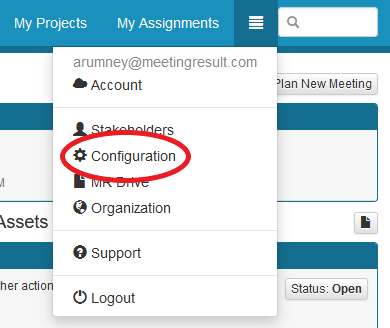
The first option you can configure is your logo. The logo can be added on a per project basis or you may add one logo here for all of your projects.
To upload a new logo, first click on "Edit"
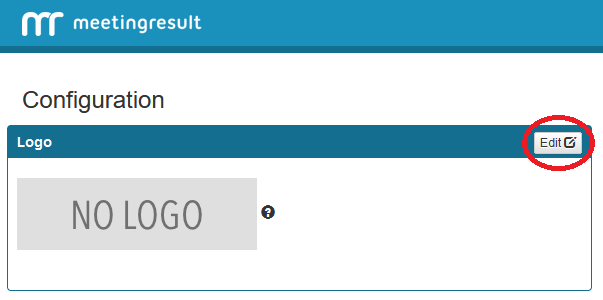
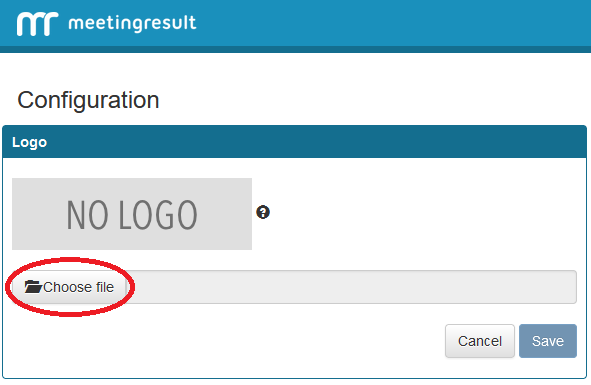
Once you click on "Edit" the "Choose File" will appear. Click this to find your logo to upload.
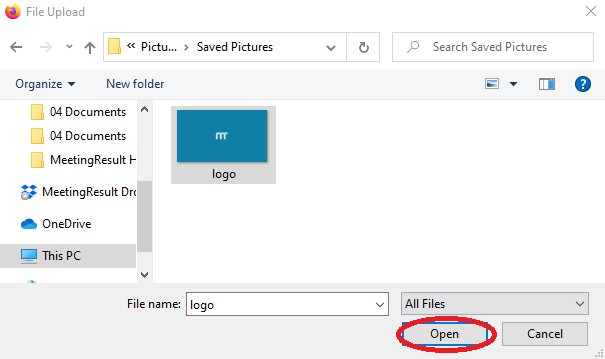
Navigate to your logo, select it and click "Open"
After you click "Open" you should see the file name of your logo appear in the text field next to "Choose File"
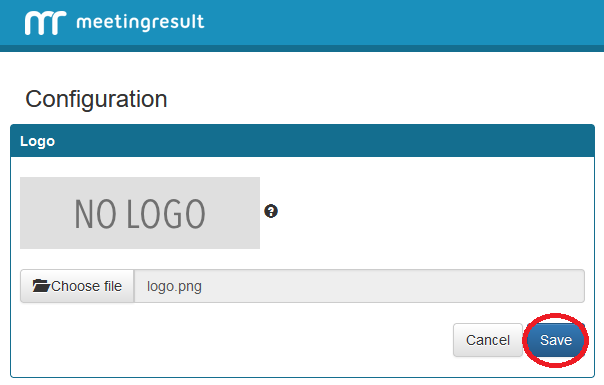
Click save and your logo will appear where the "NO LOGO" box was previously.
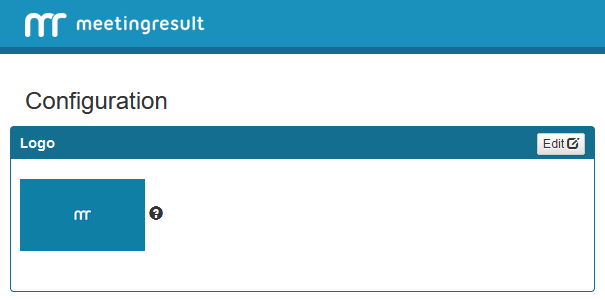
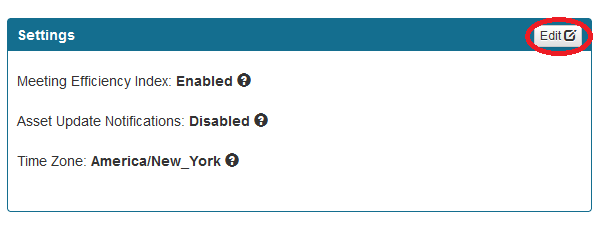
Additionally there are configuration settings for the Meeting Efficiency Index, Asset Update Notifications, and Time Zones.
Click "Edit" to change these settings.
After clicking the "Edit" button you will be able to configure these settings. Clicking on the box next to a setting will toggle the setting between "Enable and Disable"
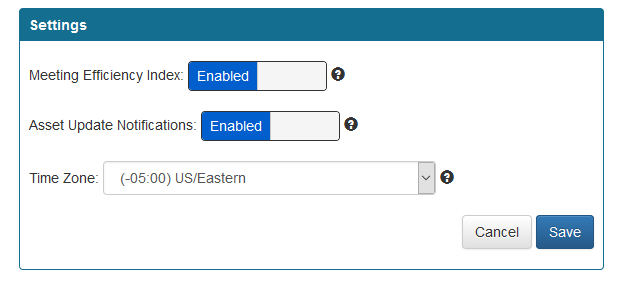
Meeting Efficiency Index - The Meeting Efficiency Index or MEI is the scores that each project and meeting has. The MEI is a measure of how effective your meetings are. You can toggle this setting by clicking on the box next to Meeting Efficiency Index.
Asset Update Notifications - This setting when enabled will notify you when an asset you assigned to a team member gets updated. The notification will come via email and will inform you of what asset item had been updated.
Time Zone - Set this to your local time zone. The time will be adjusted accordingly for the other team members who may not be in the same time zone.
Changing Password
The following will tell you how to change your password.
Navigate your browser to https://cloud.meetingresult.com/login
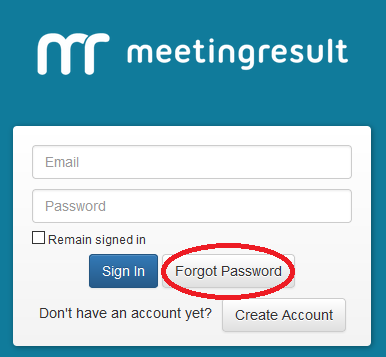
At the login screen, click "Forgot Password"
You will be brought to the following screen, enter your email and click "Request Password Reset"
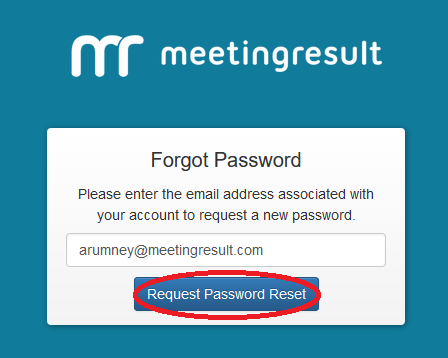
An email will be sent to you. Click the link in the email to reset your password.
Once you have clicked the link a forum will appear in your browser. Fill in your email address, new password and then confirm your password. Click ‘Change Password’ when you have finished.
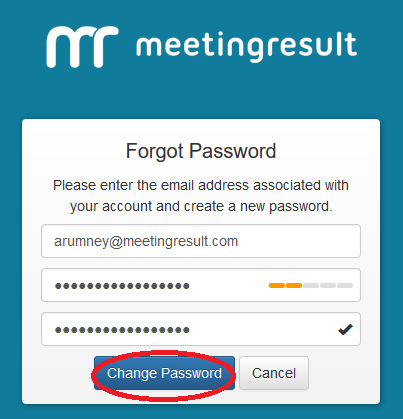
The strength of your password is indicated by a meter to the right of your password. Ideally you want the meter to turn green indicating that you have selected a strong password. Once you are finished here click Change Password.
You can also change your password from the "Account" page.
First click the hamburger menu icon at the top right of the screen, next to the search bar.
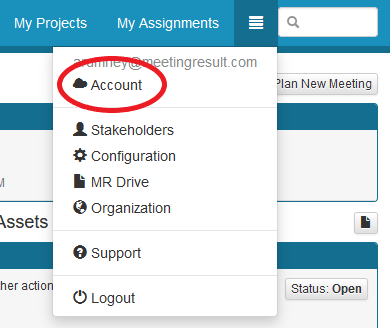
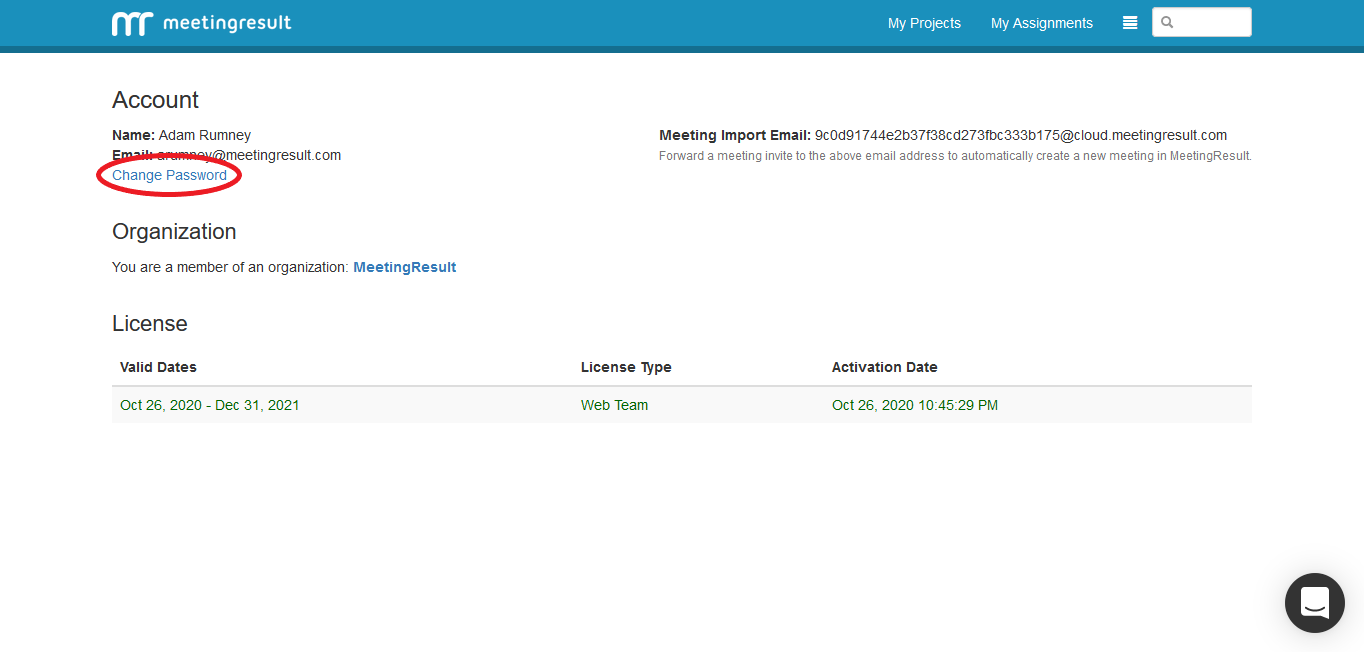
Your account page will appear. To change your password click "Change Password" located under the "Account" label.
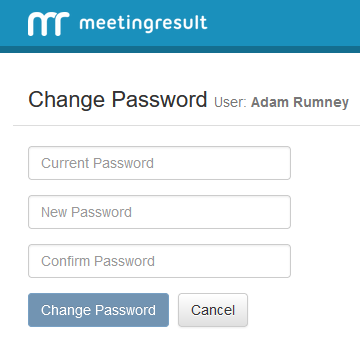
The following window will appear. Enter your "Current Password" then your "New Password" and finally "Confirm Password"
Comments