
The following video will take you through the steps of creating a new project.
Additionally, there are directions below the video as well.
To create a new project click on "Create New Project" next to the "My Projects" label
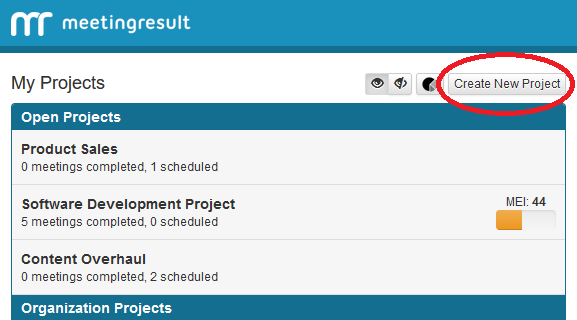
You will be brought to a page that looks like the following
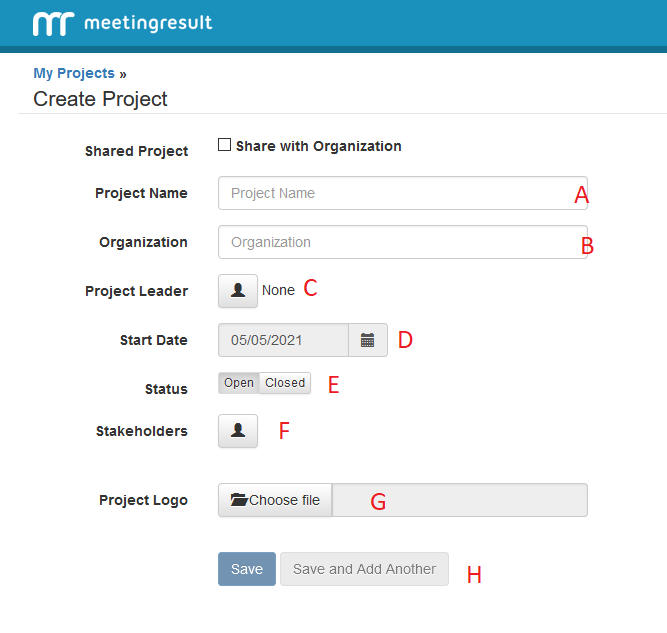
Here you have different options for your project;
A - Project Name, this is the name of your project.
B - Organization, this is the organization or company associated with the project.
C - Project Leader, clicking on the person icon will bring up a list of your stakeholders, select a stakeholder here to be a leader of the project.
D - Start Date, the date your project started
E - Status, states weather the project is Open or Closed.
F - Stakeholders, clicking on the person icon will bring up your list of stakeholders. Select the stakeholders you want involved in this project. You can add stakeholders to the project later as well.
G - Choose Logo, here you can select an image for a logo to be associated with the project.
H - Save or Save and Add Another, after you have filled out all of the information needed you may save the project by clicking the blue "Save" button or you can "Save and Add Another" which will save your current project and then create another project.
Comments