
Your Stakeholder list in MeetingResult is used for anyone that you will invite to a meeting, subscribe to the outcome of a meeting, add as a Project Stakeholder, tag on a meeting asset or designate as a Team Member. Team Members are Stakeholders that you may frequently invite to meetings and that you want to provide access to MeetingResult so that they can view information about meetings they have attended, see the meetings they are scheduled to attend and manage their assignments in one centralized place.
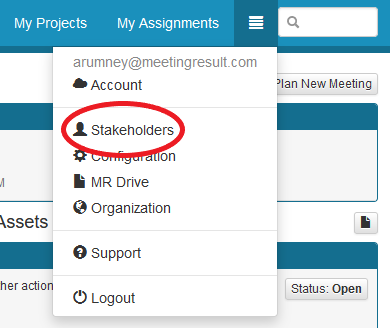
At the top right corner of your screen, select the hamburger menu icon and from the drop down menu select ‘Stakeholders’.
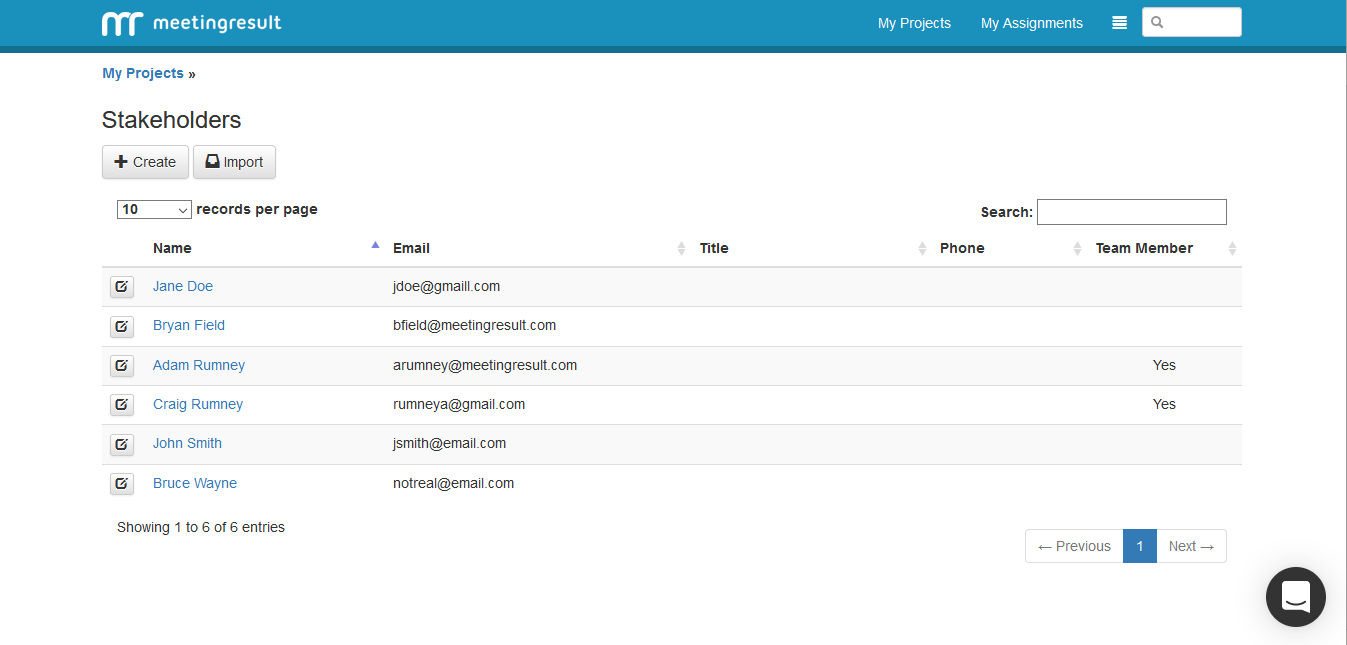
Choose the Stakeholder that you want to Enable Team Member access for from the list of Stakeholders. You also can use the search box to narrow your results. Once you have found the Stakeholder you would like to designate click on their name.
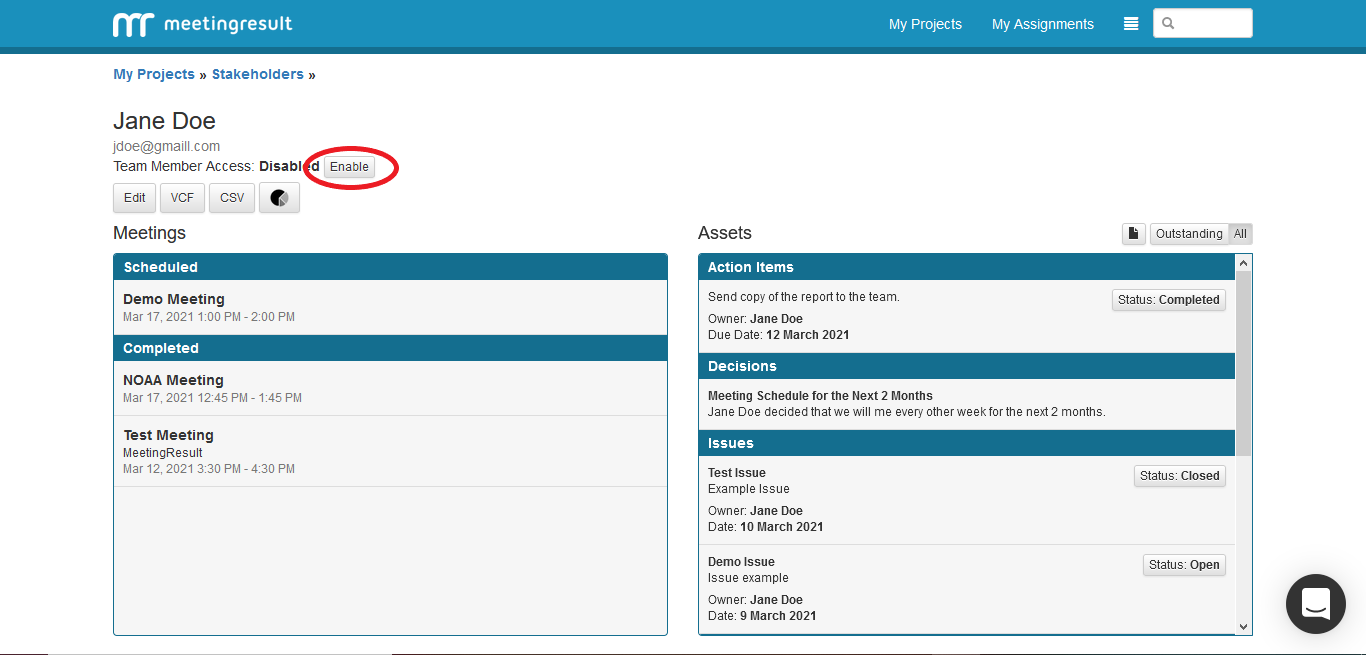
Click on the Enable button next to the Team Member Access label.
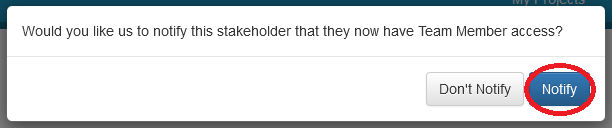
Once you click the Enable button you will be prompted to notify the Stakeholder. Click the Blue Notify button to send a system generated email to the new Team Member. The email will contain a link that the new Team Member will use to create a password that will give them access to MeetingResult. The new login will provide the Team Member with a dashboard that will show them the meetings that they have attended, the meetings they are scheduled to attend and a list of all their assignments. They can view meeting information and update the status of their assignments.
Comments