
The following video will discuss how to plan new meetings.
Additionally there are directions below the video as well.
Plan New Meeting
You can create a Meeting from either the My Projects Dashboard or from within an individual Project. To plan a new meeting from the main dashboard you will click on the Plan New Meeting button in the upper right-hand corner of the screen.

Once you have clicked on ‘Plan New Meeting’ a window will pop up where you can add your meetings information. First, input a name for your meeting. Next is the Location on your meeting, this can either be a physical address, a website or maybe a phone number where a conference call might take place for the meeting. Then you may select a Project for the meeting to belong to along with a date, time and duration of the meeting.
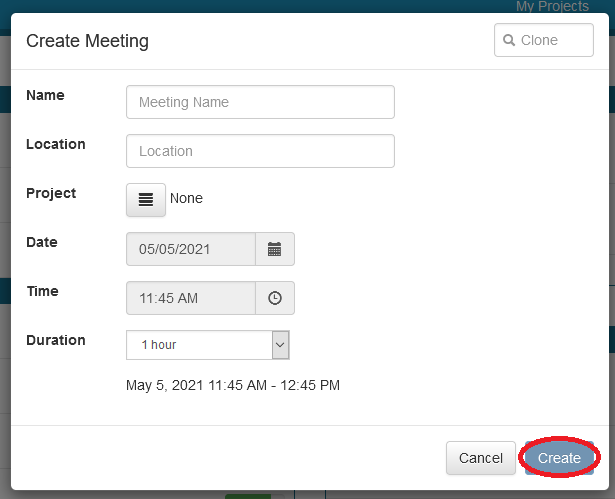
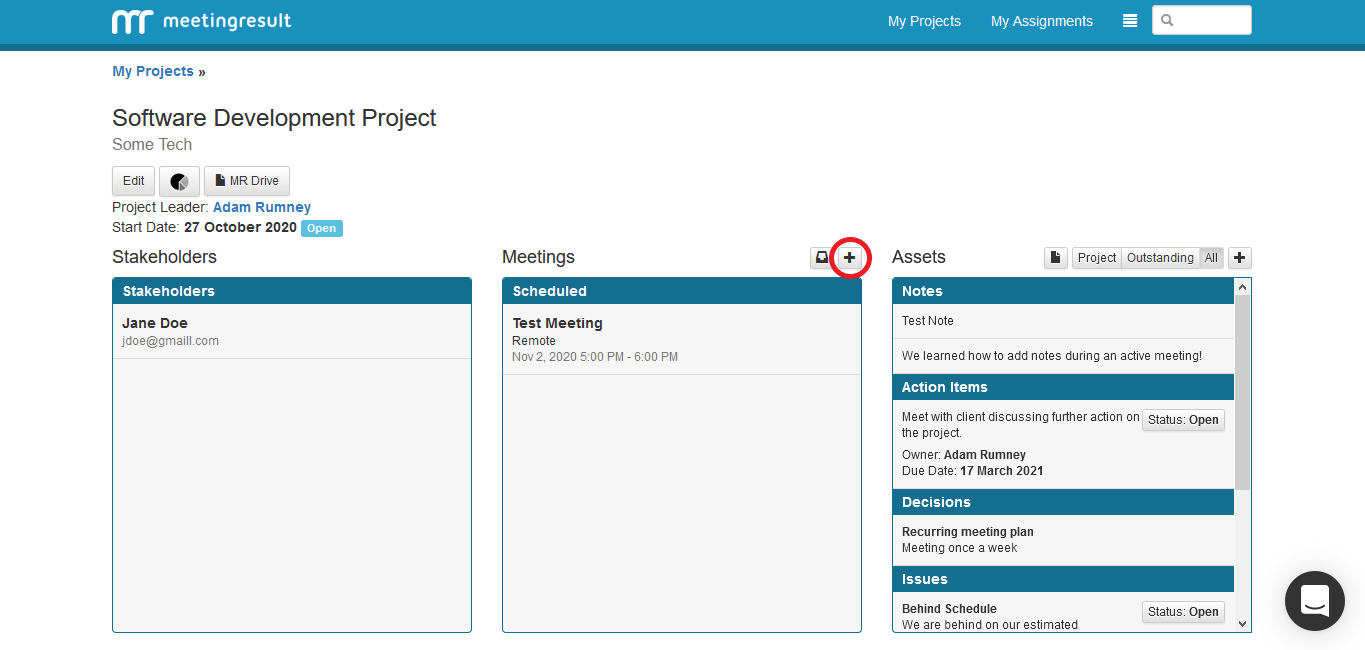
You can also create meeting right from within the project itself. To do this select a project from the main dashboard. Once you are in the project itself you can plan a meeting by clicking on the ‘Plus’ icon in the middle of the screen, above scheduled meetings. The window that appears is very similar to the previous one, only this time the project is already selected from the projects list. Fill out the fields as previously shown, click ‘Create’ when finished.
Comments