
Stakeholders are individuals that you will either invite to meetings or inform about meeting outcomes. There are three options for creating Stakeholders. You can add them one-by-one, you can bulk upload a list of Stakeholders or you can create them automatically when you schedule a meeting in your calendar system (Outlook, Google Calendar, Lotus Notes, etc.). To get started we will show you how to use the one-by-one option. The other two options are covered in our MeetingResult Essentials User Guide.
At a minimum you will need to create a Stakeholder account for yourself and one other person. However you can create as many as you would like. You can continue to add more Stakeholders over time as required.
To create Stakeholders one-by-one follow the steps below.
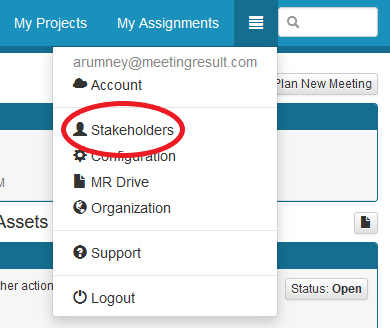
First, click on the menu bar link in the upper right hand corner of the screen next to the global search box and choose Stakeholders from the drop down list.
Click on the "Create" button.

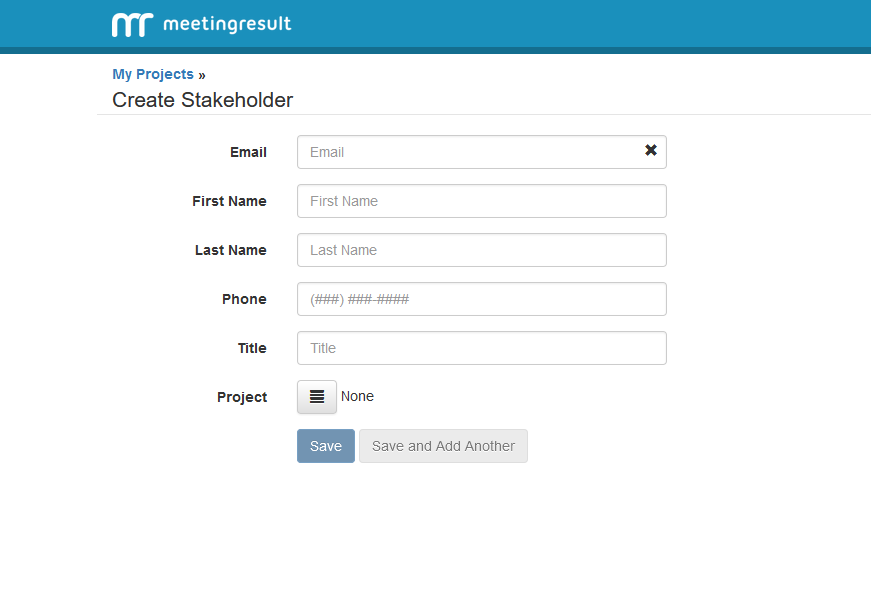
Complete the information for the Stakeholder in the form displayed below. At a minimum you need to supply First Name, Last Name and Email. If you would like to create more Stakeholders click Save and Add Another. Otherwise click Save.
Comments