
The following video will explain what MR Drive is and how to use it!
Additionally, there are directions below the video as well.
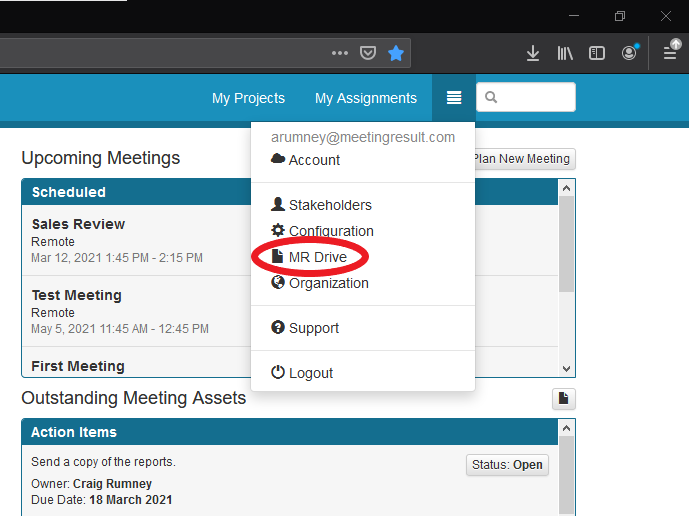
MR Drive is MeetingResult’s solution for providing document storage capabilities and allowing those documents to be used within the meetings that you schedule. By default, each project that you create will have a separate project document repository that is also created to store documents for the project. You can think of each project document repository as being a separate folder within your main MR Drive folder. MR Drive can be accessed in several locations. The first location is from within the hamburger menu icon at the top right of the screen next to the Global Search box.
Click on the drop-down menu and choose the MR Drive Option.
From the main MR Drive dashboard, you can
- View all files across all your project’s document repositories.
- Select individual projects to view just the files stored for that project.
- Search for files.
- View total storage utilization as a percentage of available space as the actual size of all your files.
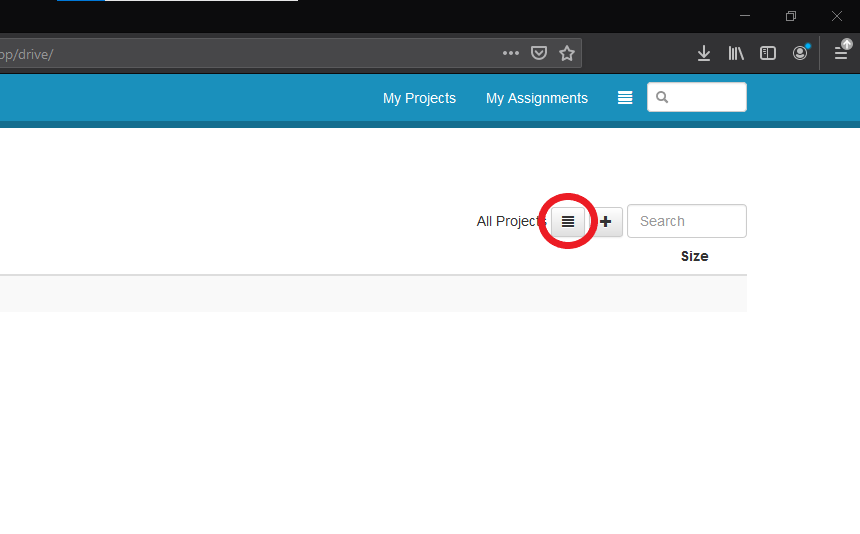
You can select a specific project within the MR Drive Dashboard by clicking on the hamburger menu icon that is in between ‘All Projects’ and the ‘Plus’ icon.
Next, you can either select a file that has already been uploaded for the Project that your meeting belongs to or you can add a new file by uploading it from your computer.
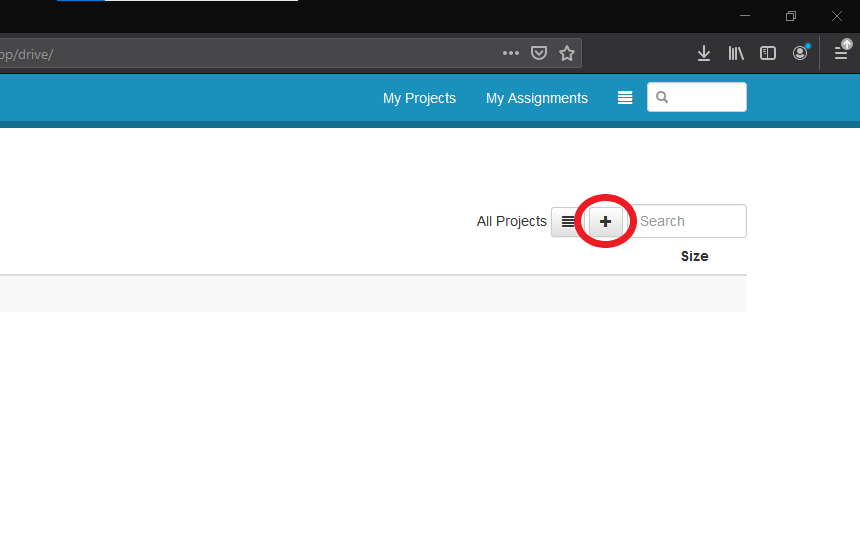
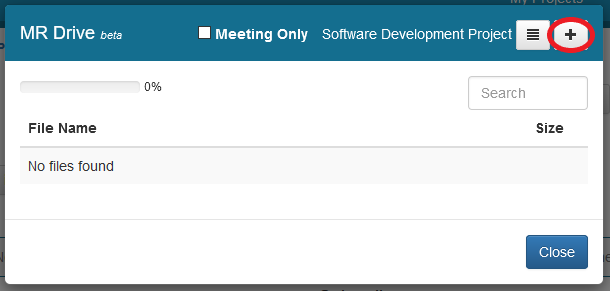
To add a file, click on the plus sign in the upper right-hand corner of the MR Drive popup window.
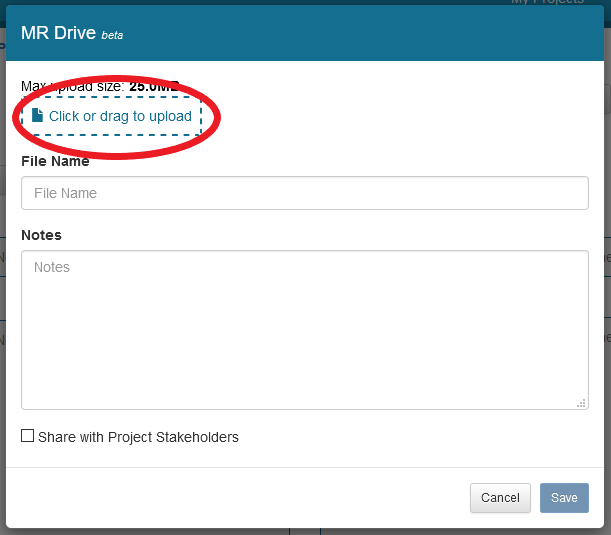
 Click the Choose File button in the top left of the screen to locate and upload your file. You can also upload a file from within a specific project.
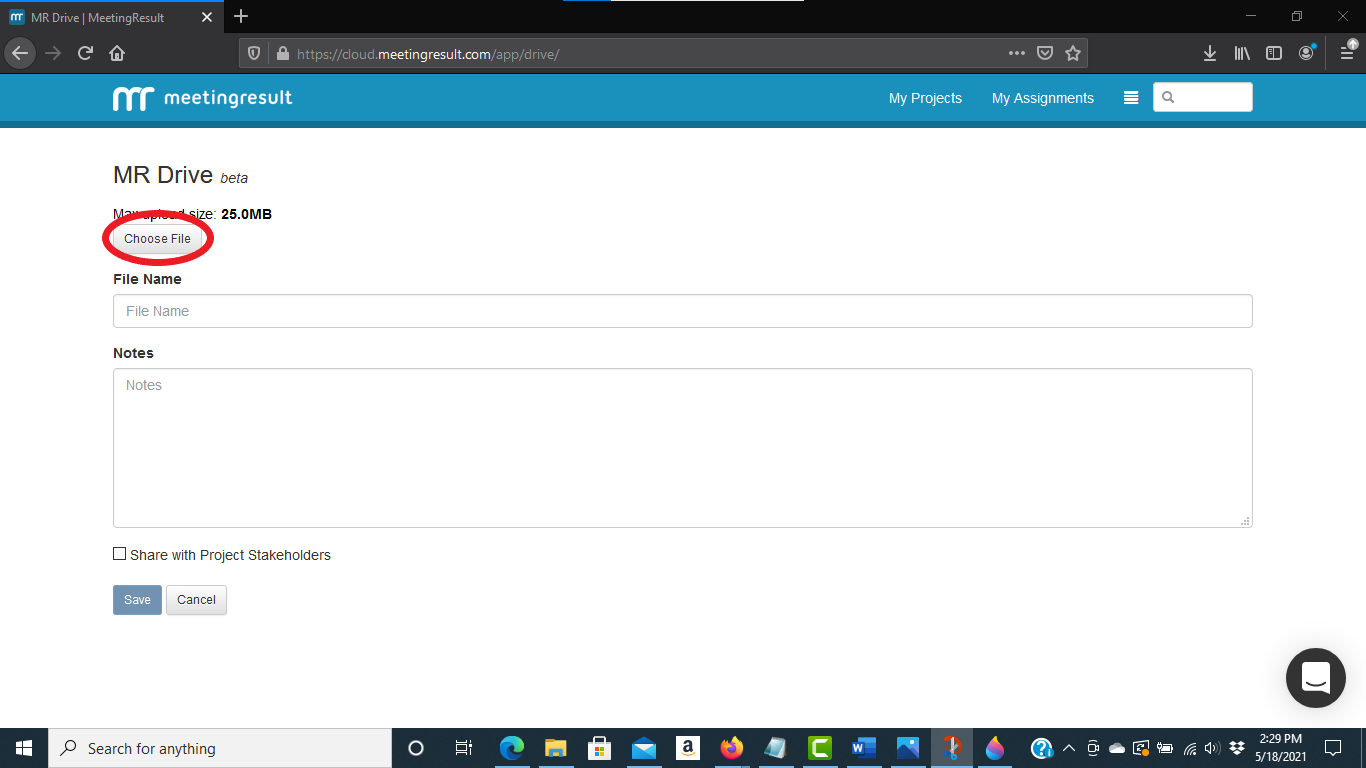
You can optionally enter notes and you can choose to make this file available to Project Stakeholders by clicking the checkbox at the bottom. If this is a read ahead Document/File you will now be able to attach and send this out with your agenda for the meeting.
Adding files from within a Project
Navigate to a project and click MR Drive.
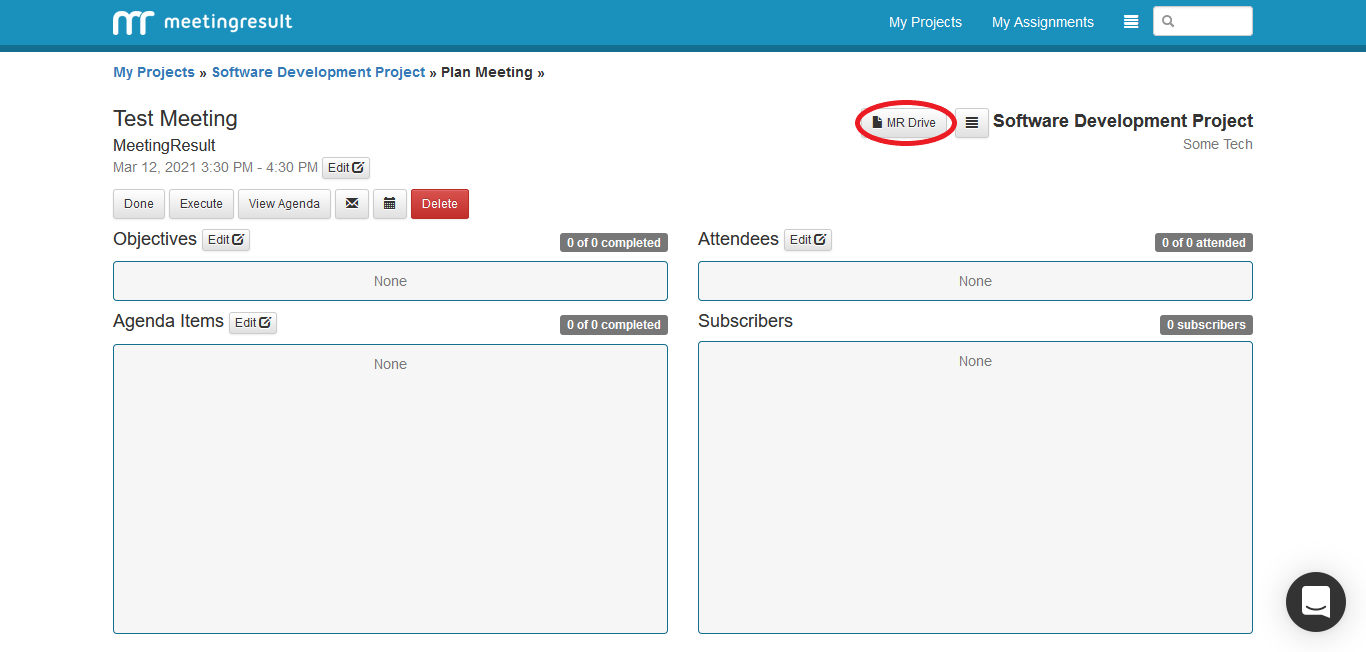
Next click the plus icon in the top right.
Here you can click the within the blue rectangle to search for your file like you did previously, or simply drag and drop your file in the blue box.
Comments