
The following video will explain how to create Objectives in your meetings.
You may also scroll past the video for more information.
To add Objectives follow these steps:
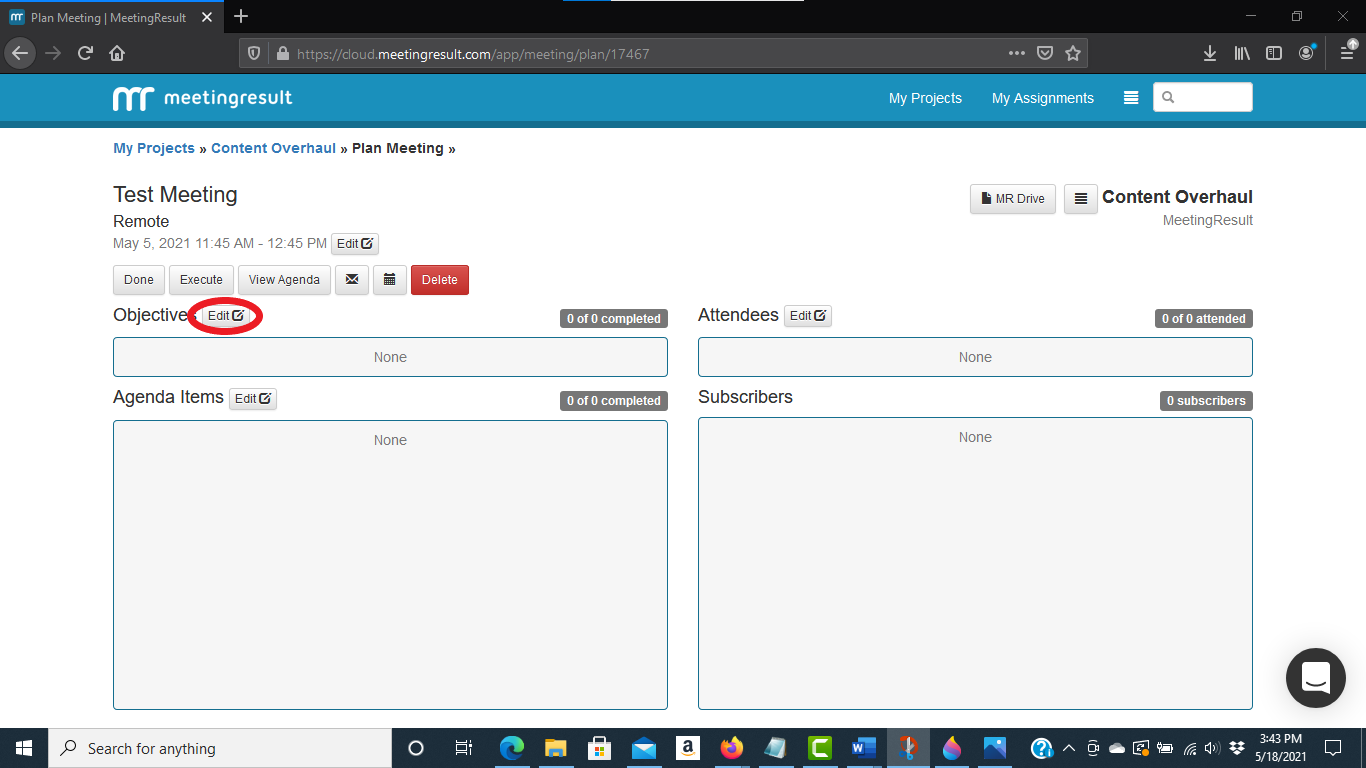
Step 1 - Click on the Edit button to the right of the Objectives label.
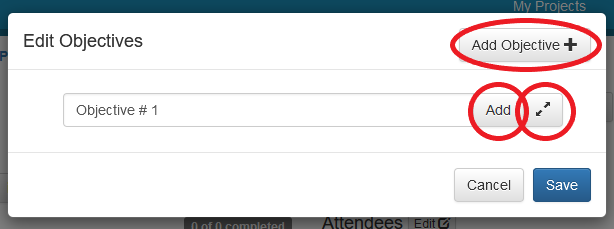
Step 2 - When you click on the Edit button you will see the screen below. You can either use the Quick Add feature by entering the text of your Objective and clicking the ‘Add’ button. Alternatively you can click on the "Add Objective" button in the upper right hand corner or the expand arrow icon to the right of the ‘Add’ button to open up the Objective editor if your Objective requires more than one line of text to enter.
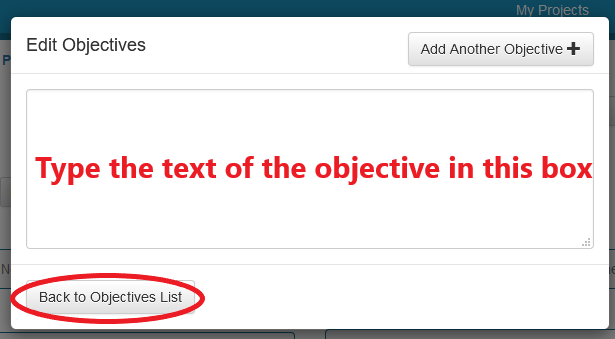
Step 3 – If you decide to open the full Objective editor screen then type the Objective in the text box provided. When you are finished click the "Back to Objectives List" in the bottom left corner of the pop-up window.
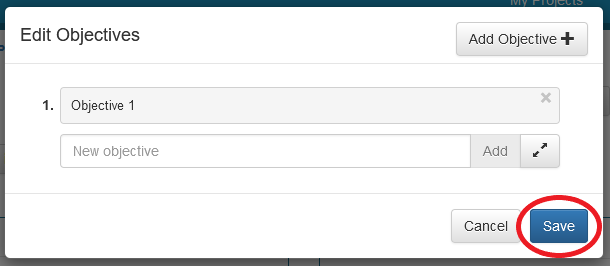
Step 4 - To create additional Objective Items follow the same steps. When you are finished creating Objectives click on the ‘Save’ button in the bottom right hand corner of the pop-up window.
Comments