
The following video will discuss how to keep track of your completed Objectives and Agenda Items!
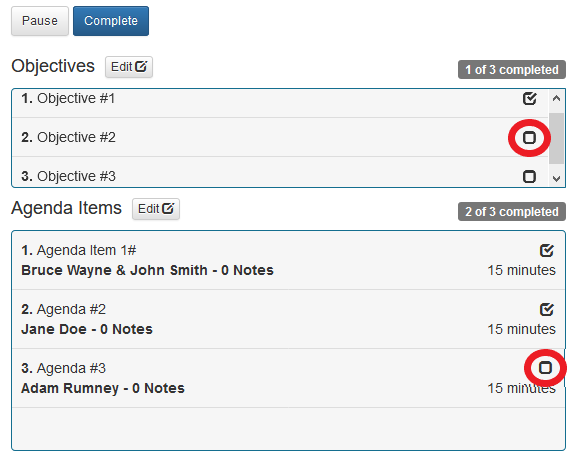
During the Meeting, you will complete Agenda Items and will achieve the Objectives defined for the meeting. To record the completion of an Objective or Agenda Item you will click on the checkbox next to the Objective or Agenda Item that you would like to record as complete. A check mark will appear in the box to indicate it is completed.
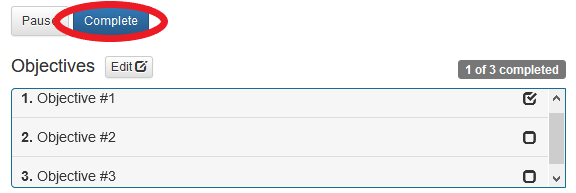
When the Meeting is completed and you have verified that you have captured all the Meeting Assets, recorded attendance and checked completed Objectives and Agenda Items, you are ready to complete the Meeting. To complete the Meeting click on the "blue" Complete button in the upper left-hand corner of the Meeting Execution screen.
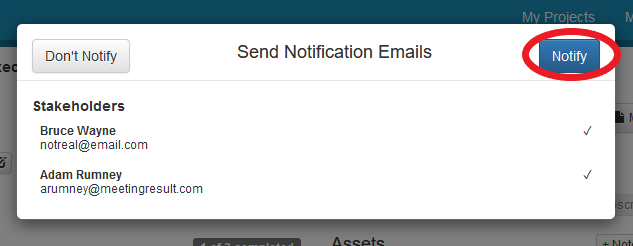
When a Meeting has been completed a popup window will appear, prompting you to send notification emails to anyone that was either assigned a Meeting Asset or tagged on a Meeting Asset. To send notification emails, click the blue Notify button in the upper right-hand corner of the popup window.
Alternatively, if you do not wish to send notification emails, click on the gray “Don’t Notify” button in the upper left-hand corner of the popup windows.
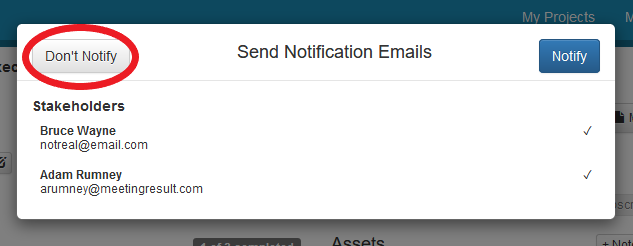
You can also individually deselect Stakeholders if you do not want them to receive the notification email. Just click on the person you want to remove, and you will notice that the check mark next to their name will disappear. This indicates that they will not receive the notification email.
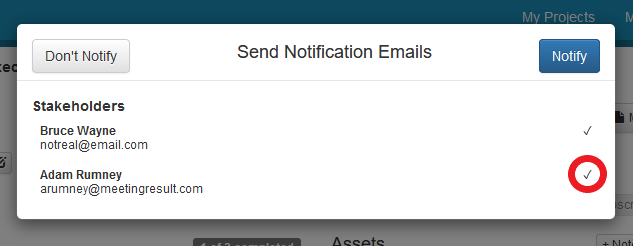
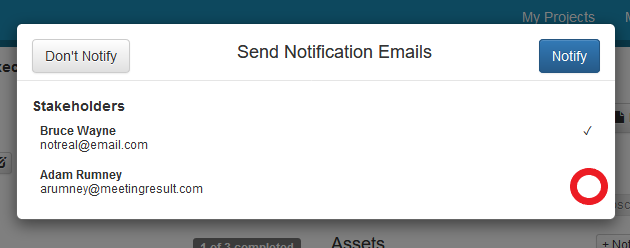
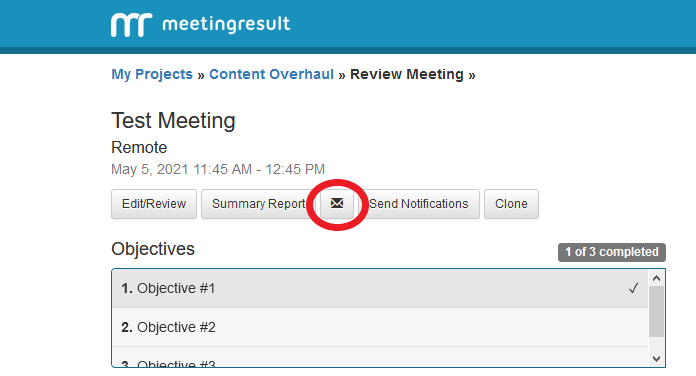
Once a Meeting is completed you will be brought to the screen below. If you decide that you would like to send or resend notification emails you can do so by clicking on the Send Notifications button. The same window will appear as previously shown. Again, you may deselect Stakeholders that do not need to be notified.
Comments