
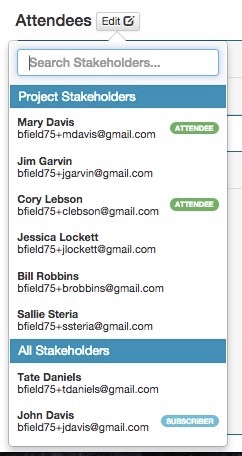
- Project stakeholders are grouped at the top of the list.
- Below the project stakeholder are the list of all of the stakeholders you have created in the system.

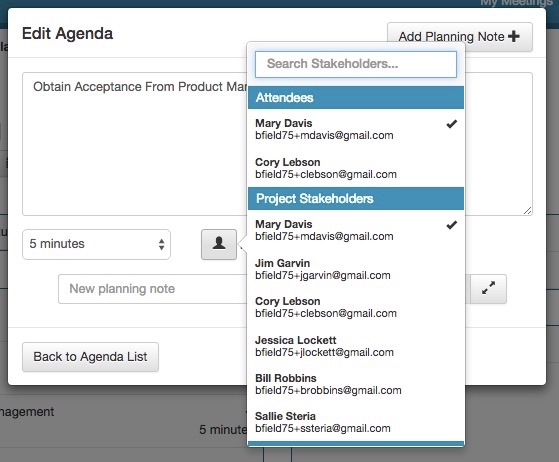
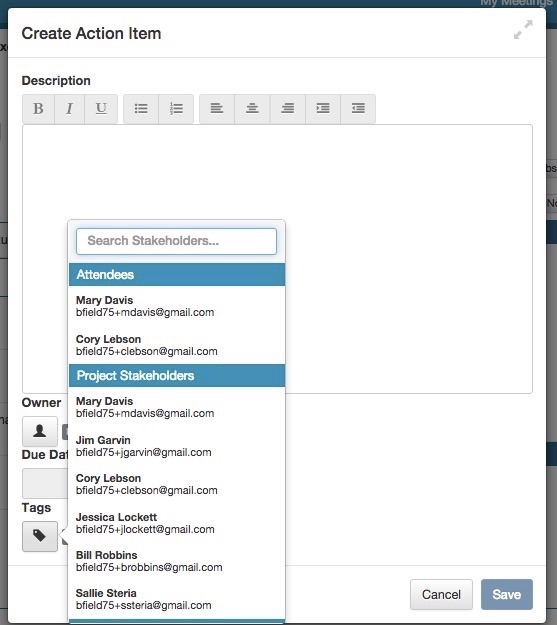
- Meeting attendees are grouped at the top.
- Project stakeholders are grouped below meeting attendees.
- Below the project stakeholder are the list of all of the stakeholders you have created in the system.
- Meeting attendees are grouped at the top.
- Project stakeholders are grouped below meeting attendees.
- Below the project stakeholder are the list of all of the stakeholders you have created in the system.
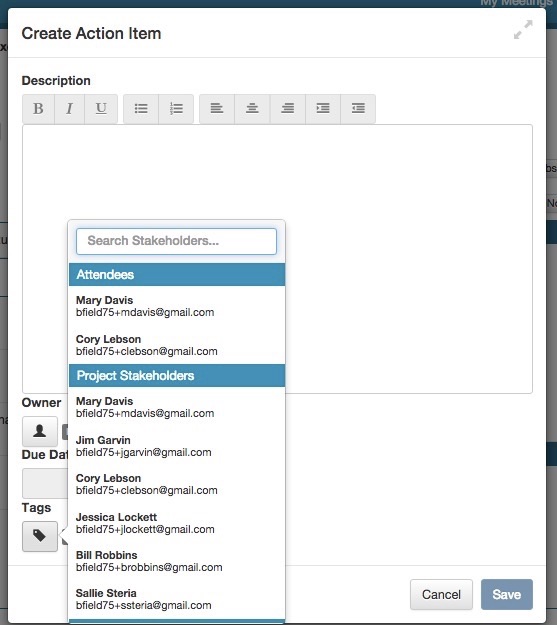

- Meeting attendees are grouped at the top.
- Project stakeholders are grouped below meeting attendees.
- Below the project stakeholder are the list of all of the stakeholders you have created in the system.
5. Stakeholder List Improvements allow you to more easily create, edit and navigate your list of stakeholders. As a reminder stakeholders are people that you create in MeetingResult so that you can add them to your team to give them access to the system, invite to meetings, subscribe to meetings and tag on meeting content to keep them looped into key information.
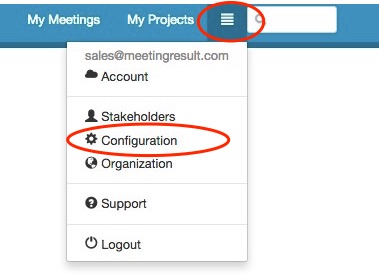
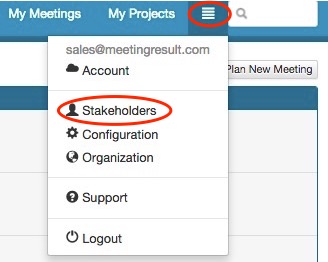
To access the new Stakeholder management interface you will use the dropdown navigation menu which is accessible by click on the horizontal "three bar" icon in the upper right hand corner of the screen next to the global search box (see screenshot below)
Once you click on the Stakeholder option in the dropdown menu you will see the screen below. See the legend below the screenshot for an explanation of functionality available on the interface.
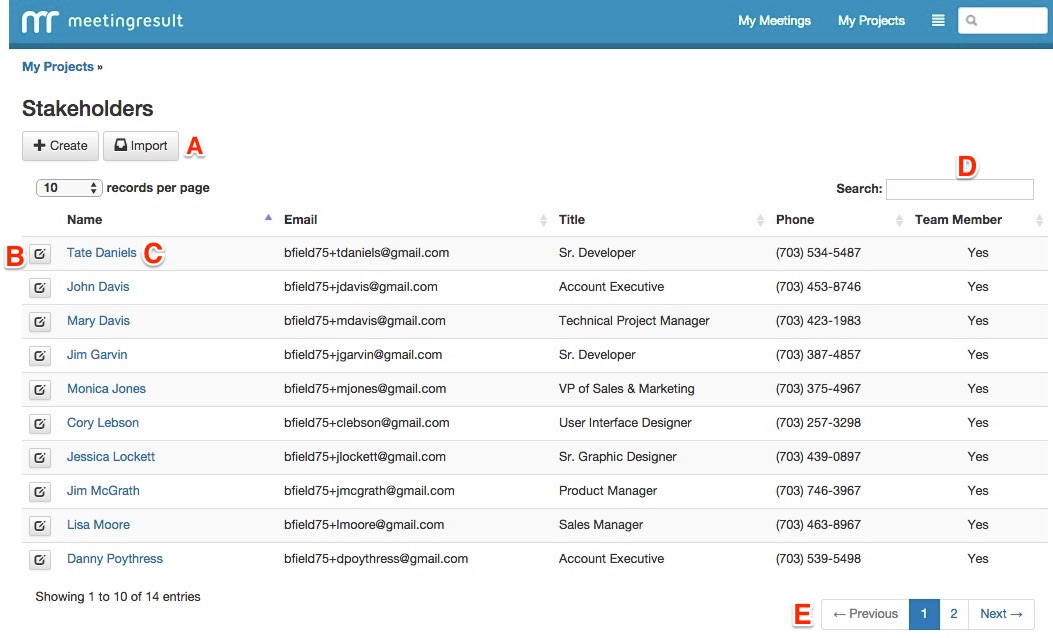
A - You can create stakeholders one at a time or you can bulk import them.
B - To edit an individual stakeholder click on the edit button to the left of the stakeholder record in the list.
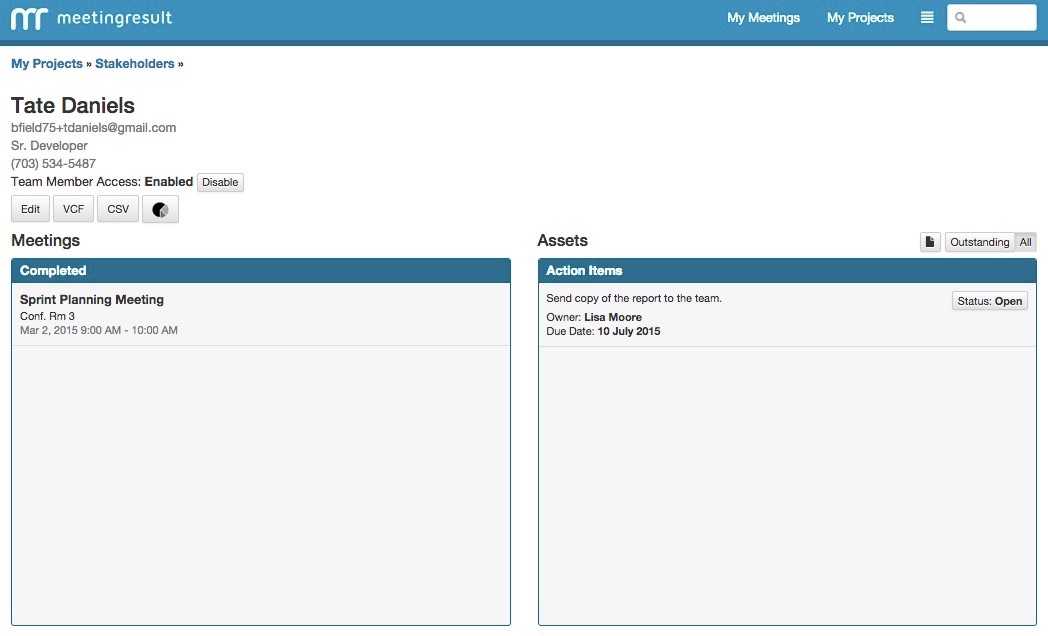
C - To view a stakeholder record click on the name of the stakeholder. This will open the screen that is included below.
D - To search for a stakeholder in your list type their name in the search box to filter the list.
E - To navigate your stakeholder list page-by-page use the previous and next or click on a specific page number to jump to that page.
6. Easily Remove Attendees, Subscribers, and Stakeholders Tagged on Meeting Assets
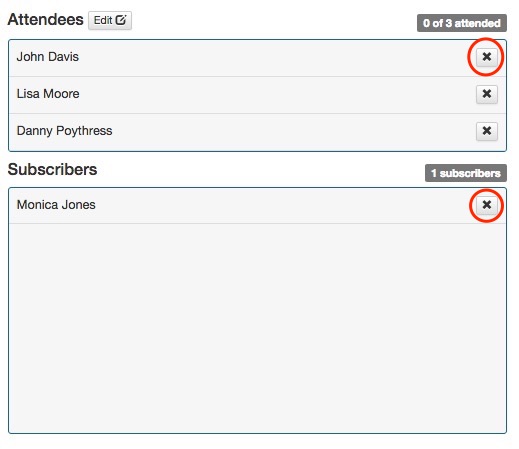
When you are planning a meeting and inviting attendees and setting up subscribers you will sometime need to make changes. Previously you had to open up the attendee popup window and navigate to the attendee or subscriber that you wanted to remove. Now you can do it by simply clicking on the "x" next to the attendee and subscriber on the main meeting planning screen.
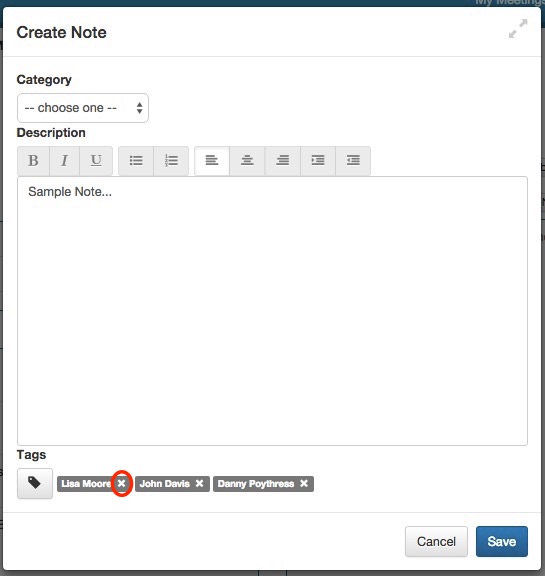
When you capture a meeting asset you can optionally tag stakeholders so that they will receive a system generated email with the content of the asset in order to keep them looped in on key information. Previously when you selected stakeholder to tag and wanted to make a change you had to open up the select stakeholder popup and navigate to the stakeholder and click to remove them. Now you can click on the "x" next to their name on the main meeting asset editor to remove unwanted stakeholders from the tag list.
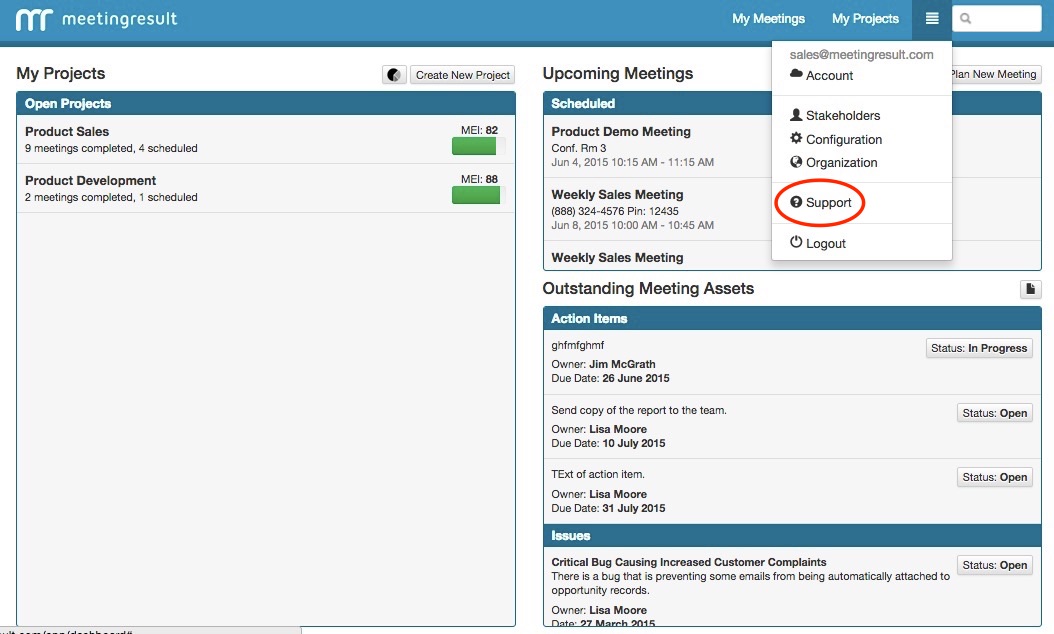
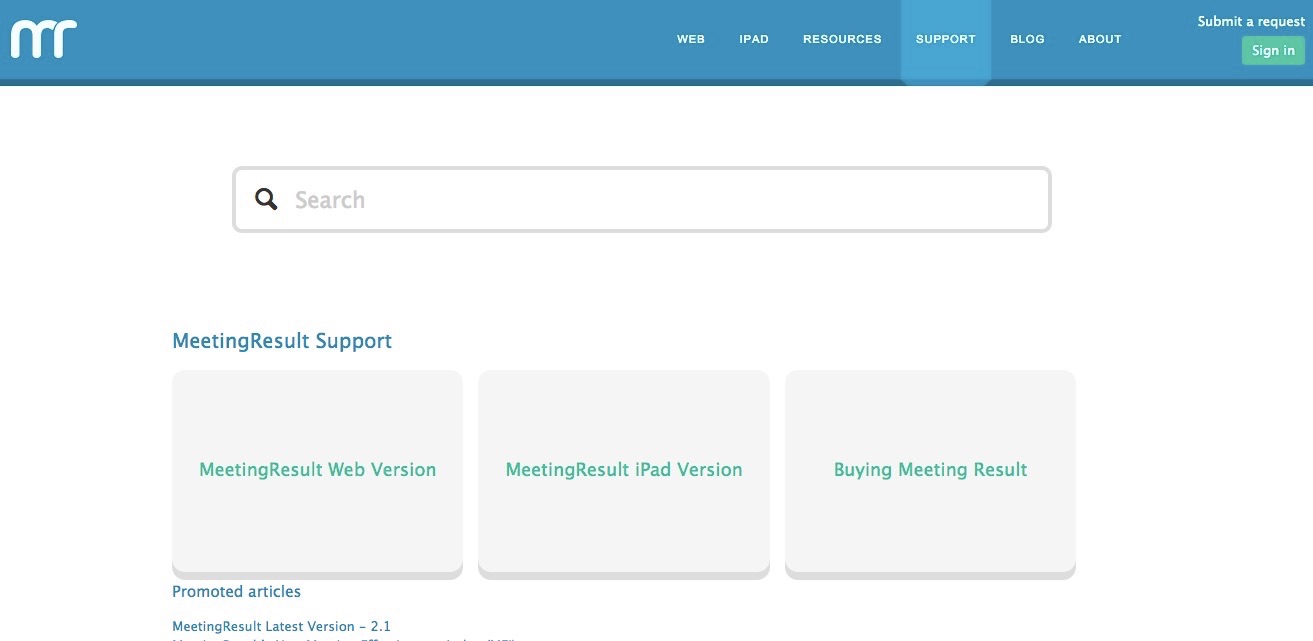
7. Support Link Added To Main Dropdown Navigation Menu - The new support link will allow you to quickly access our support center to get help with your questions and to learn how to use functionality within MeetingResult. As always if you have any questions or need help please send us an email at support@meetingresult.com
MeetingResult's Support Center Interface
Comments